Why the Network tab is useful for AI privacy
Freshmii’s promise is narrow: supported prompt and file cleanup runs in your browser, so your original text or file is not uploaded to a Freshmii server during the scan, redaction, or metadata cleanup step.
The browser Network tab is a practical way to test that promise. Chrome, Edge, and Firefox all provide network inspection tools that show page requests, methods, domains, response types, timing, and transfer size. Those panels are not a replacement for a formal security audit, but they are useful evidence for normal users, teams, and reviewers who want to check whether a tool sends data away while they use it. Verification is worth the few minutes because the downside is expensive: IBM’s 2025 Cost of a Data Breach report found 20% of organizations had already experienced a breach involving shadow AI.
The key is to separate normal page loading from the private action. A Freshmii page must load HTML, CSS, JavaScript, images, and the WebAssembly scanner or file engine. Those requests are expected. What should not appear after you process private content is a new upload request carrying the original prompt, screenshot, PDF, DOCX, or image.
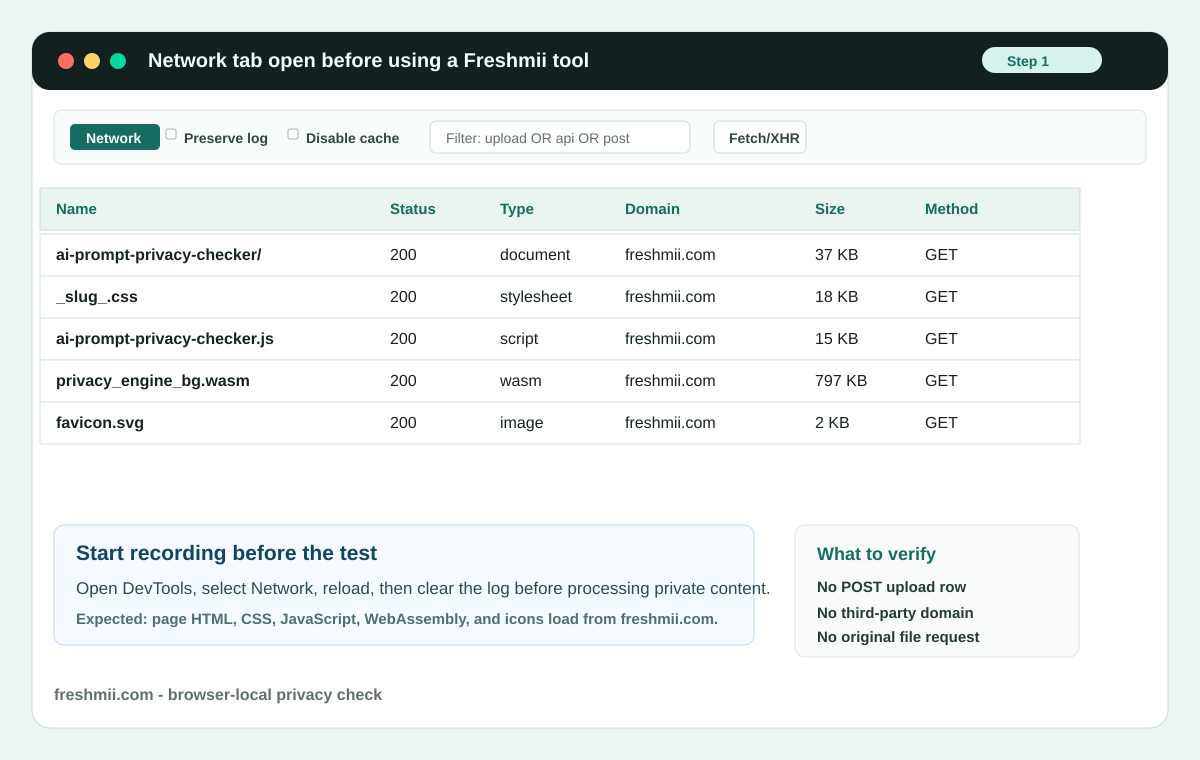
A clean verification sequence
Use this sequence when you want evidence that a browser-local tool is not uploading your original content.
- Open the Freshmii tool page you want to test.
- Open Developer Tools and select the Network tab.
- Enable Preserve log if you want a screenshot record.
- Reload the page so the Network tab captures the expected page assets.
- Clear the Network log after the page finishes loading.
- Paste a test prompt or choose a test file.
- Run the Freshmii action: scan, redact, inspect, remove metadata, or export.
- Look for new requests after the action.
For the AI Prompt Privacy Checker, paste test text with fake emails, fake API keys, and fake IDs. The scanner should run locally after the page and WebAssembly engine have loaded.
For Screenshot Redactor, select a screenshot, draw blackout regions, and export the result. You should see browser work and a local download, not a new upload endpoint.
For PDF Redactor, load a test PDF, draw redaction boxes, and export the redacted PDF. The heavy processing can take time, but the important signal is still the same: no request carrying the original PDF should appear after the action.
For Metadata Inspector or Metadata Remover, choose an image, PDF, or DOCX file and check whether new requests appear. The only optional external lookup to treat separately is reverse geocoding in Metadata Inspector when you explicitly ask it to convert GPS coordinates into a place name.
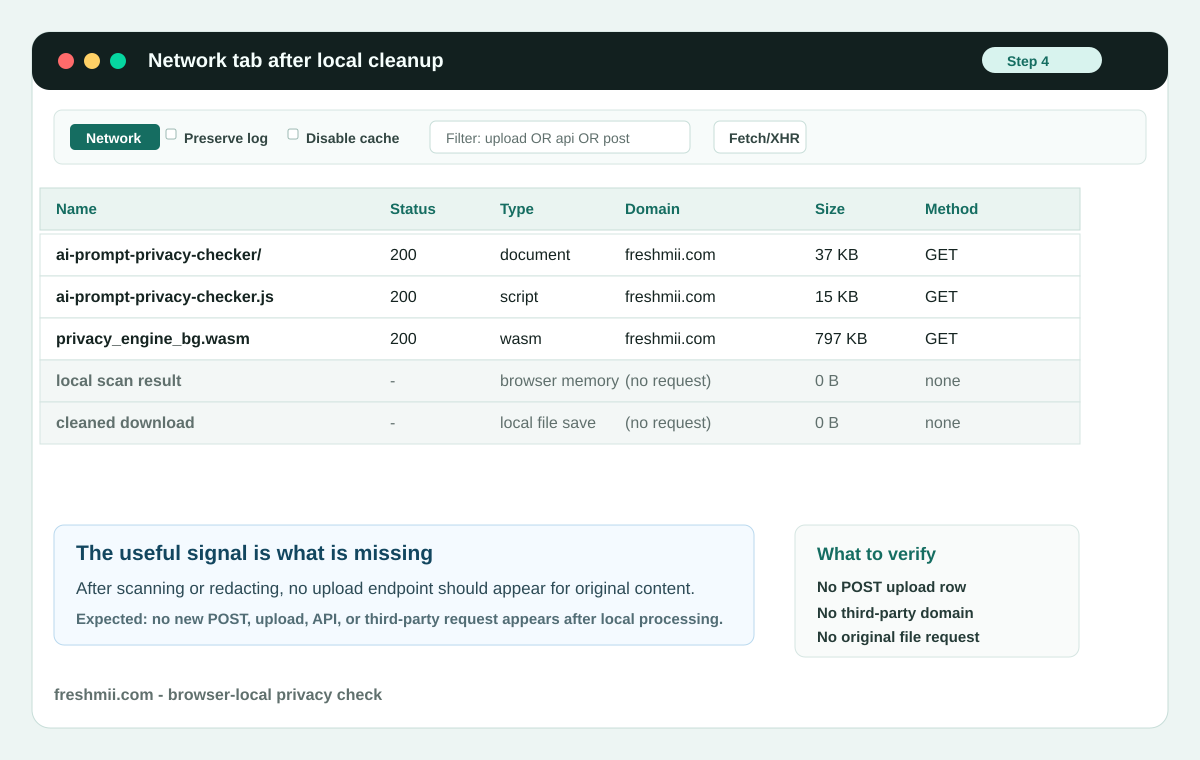
What is normal and what is suspicious
Normal page activity includes the Freshmii document, CSS, JavaScript, WebAssembly, icons, Open Graph images, and any browser cache revalidation. These requests usually happen when the page loads or reloads, before you process private content.
Suspicious activity is action-timed. If a new request appears immediately after you paste a prompt, select a file, click scan, click redact, inspect metadata, or download a cleaned result, inspect it closely. Pay attention to the method, domain, payload, request headers, and timing.
| Network signal | How to read it |
|---|---|
| GET request for Freshmii JavaScript or WebAssembly during page load | Expected page asset |
| GET request for an icon, CSS file, or OG image | Expected static asset |
| New POST request after selecting a file | Suspicious unless clearly explained |
| New request to a third-party domain after processing private content | Suspicious unless you intentionally used an external lookup |
| Local download prompt without a new network row | Expected for browser-generated cleaned output |
Use the browser’s filter box to search for terms like upload, api, post, collect, analytics, or a domain that is not freshmii.com. The Network tab can also show request method and payload details when you click a row.
How to capture evidence for a team
For a lightweight review record, capture two screenshots:
- The Network tab after page reload, showing expected Freshmii assets.
- The Network tab after processing the test prompt or file, showing no new upload request.
Use fake test data for the record. Do not screenshot real client names, production credentials, private documents, or personal data. The point is to show data flow behavior, not to preserve sensitive examples.
Save the browser, tool URL, date, and tested action. For example: “Chrome on Windows, AI Prompt Privacy Checker, pasted fake support note, clicked Scan, no new POST/upload request after action.” This makes the evidence useful without exposing private material.
What the Network tab cannot prove
The Network tab answers one question: did this browser session make a network request while the panel was open? It does not prove that every future build behaves the same way, that a browser extension did not interfere, or that every dependency is risk-free.
That is why the best workflow combines multiple checks: keep the tool page on the canonical Freshmii domain, use test data when verifying, check the Network tab during the action, inspect cleaned files again, and review provider privacy settings before you upload anything to an AI assistant.
For the broader workflow, pair this guide with the Freshmii AI Privacy Risk Matrix and the Before-AI Upload Checklist PDF.